The Complete AI Upscaling Handbook: All in ComfyUI
Source: Reposted from ComfyUI (@ComfyUI)’s original post on X.
Editor’s Note
Why am I reposting this article?
Whether you’re a content creator or running an e-commerce business, we’re all increasingly relying on AI to generate visual assets—product shots, lifestyle images, promo videos… But generation is just the first step. The real challenge is: how do we make AI-generated content ready for listings and ad campaigns?
Most AI models output at only 480-720p with blurry edges, plastic-looking skin, and lost product details… These issues make AI content hard to use directly on product pages or marketing materials. And “upscaling” is the key step to solve this problem.
This official ComfyUI guide comes at the perfect time—it systematically compares 10+ upscaling models across different scenarios, from portrait enhancement to product photography, from video upscaling to archival restoration, covering almost every use case we encounter daily. More importantly, all workflows are ready to use directly in ComfyUI.
If you’re using AI to create product images or marketing assets, this article is worth bookmarking.
Upscaling has been the No.2 requested utility feature in our community. Today, we are confident that creators can access every major upscaling approach here in ComfyUI, after weeks of testing and integrations.
This article deep dives into available models, benchmarks, 10 real use cases, and 20 production workflows to help you choose the best path.
Why Upscaling Matters
- Industry requirements for resolutions: 4K/8K end results are widely required across VFX & Film, Marketing, E-commerce, Gaming, and Design industries, and requirements keep moving up.
- Reframing: When assets ship across different aspect ratios and placements, extra resolution headroom prevents quality loss after cropping or recomposition.
- The AI content problem: Generative AI has dramatically increased the speed of visual creation, but most AI asset today is still generated at 480–720p, and not production-ready at the pixel level: edges, micro-texture, faces/hands, compression artifacts, etc. This creates a new pipeline: Generation → Refinement / Fix → Upscale → Delivery
- It’s a cost/time hack: generate or render smaller → upscale at the end. This is a standard efficiency move in pipelines under budget/time pressure.
Key Concepts
Upscaling vs. Enhancement
- Upscaling → increases resolution while reconstructing detail
- Enhancement → improves perceived quality (denoise, sharpen, restore, color, faces, etc.)
The best practice in AI pipelines usually combines both steps.
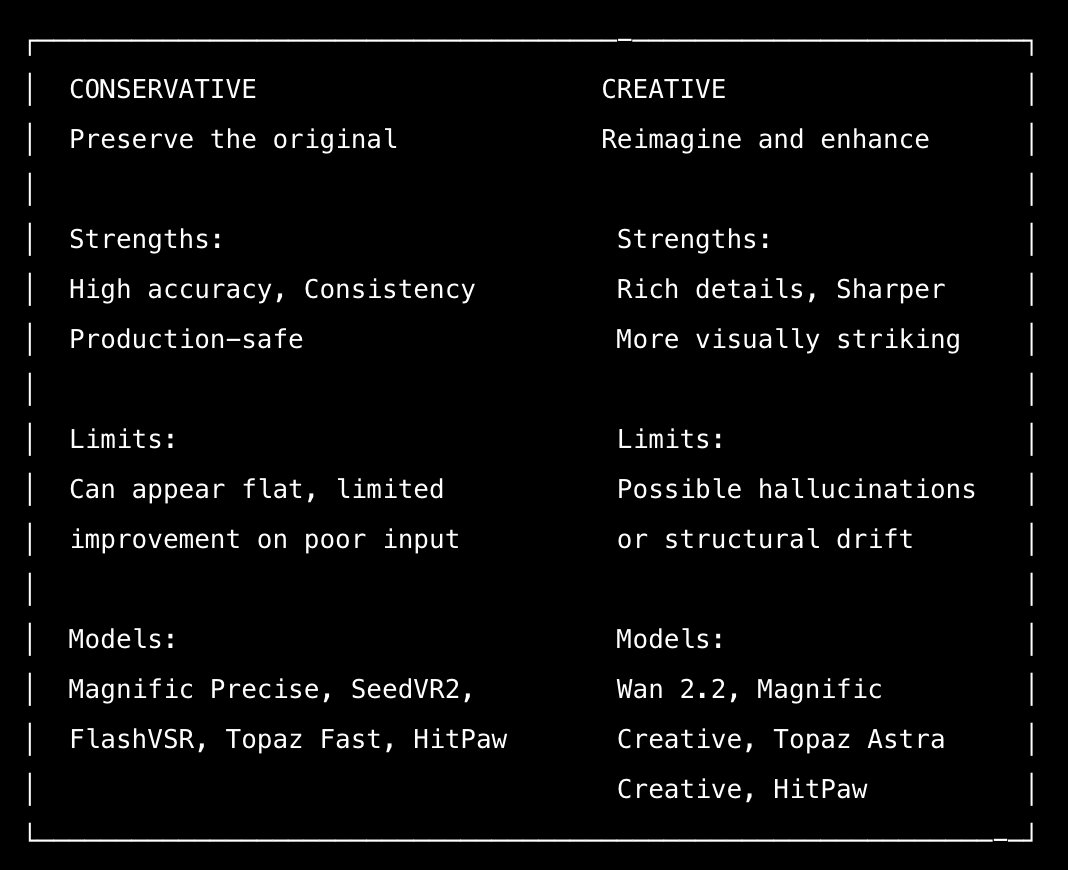
Creative Upscale vs. Conservative Upscale
Diffusion models and generative AI changed what “upscaling” means.
Traditionally, super-resolution aimed to preserve the original signal, which you can also easily achieve in ComfyUI. This article does not focus on this.
Today, some models can re-imagine details that never existed. And there are models approaching different balances between the two.
Image Upscale
TL;DR - Magnific skin enhancer for portraits. Magnific Precise, WaveSpeed SeedVR2 or Nano Banana Pro for product photography. The upscale model depends on your needs for landscapes and illustrations. Do not rely on upscaling to fix common AI artifacts. For SeedVR2, downscaling the image to 0.35 megapixels with the ImageScaleToTotalPixels node and then upscaling gets you better results.
Use Case 1: Portrait / Skin Enhancement
When it comes to upscaling portraits of realistic subjects, achieving realistic skin details while maintaining character consistency is key. The best upscale models for fixing plastic skin need to add texture, pores and natural skin imperfections. In this domain, there is one model that far outperforms the rest - Magnific Image Skin Enhancer. The results below speak for themselves.


Use Case 2: Product Photography
Maintaining a faithful representation of materials, product label edges, and small text is a must when upscaling product images. Therefore, conservative upscaling models are necessary.
We recommend testing with HitPaw, Magnific Precise, WaveSpeed SeedVR2 and Nano Banana Pro.


Use Case 3: Landscape / Environments
For this use case, the upscale model you select really depends on your needs. Have an environmental shot that you want to pop with details and set a mood? Use a creative upscale model. Have an establishing shot where a building needs to stay consistent? Use a conservative upscale model. With this in mind, any model can potentially fit your needs.
It’s worth noting that if your input image has artifacts, creative upscale models may be able to reimagine the artifact while conservative upscale models will not.


Use Case 4: Stylized Art / Illustration
This is another use case where the correct upscale model depends on your needs. A rule of thumb is that if your input has a very distinct/unique style, the best model will be conservative. Creative models may add too many details and stray away from the desired illustrated style. However, if your input image has room for detail, a creative model works well and can even improve the style.
We recommend playing around with the ‘creativity’ parameters for Magnific Creative and Topaz Image Enhance to find values that meet your needs! Nano Banana Pro can also work well for more common styles and adding details (but may rely on ‘seed luck’).
Use Case 5: AI Images
When it comes to upscaling images that have typical AI issues such as too many fingers, artifacts, incorrect anatomy, and morphing, the assumption is that creative upscales can fix it. Sometimes that’s true, but other times not so much. Best practice is to resolve these issues prior to upscaling with image-edit models or traditional tools (or generate a new image entirely).
Upscale Speed from 1K → 4K
| Model | Time |
|---|---|
| Nano Banana Pro | ~80s |
| Topaz Image Enhance | ~100s |
| Magnific Creative | ~50s |
| Magnific Skin Enhancer | ~60s |
| Magnific Precise | ~40s |
| HitPaw | ~60s |
| WaveSpeed SeedVR2 | ~40s |
Video Upscale
TL;DR: SeedVR2 and HitPaw deliver the most accurate and consistent realism, and Topaz Astra Creative is strongest for cinematic polish and fixing AI-generated video. Both FlashVSR and HitPaw are good for speed.
Use Case 6: Video Upscale (Quality Mode)
SeedVR2 and HitPaw deliver the most accurate results, with strong image quality and excellent character consistency.
Topaz also upscales effectively, but it can sometimes be more creative than expected. This makes it especially suitable for cinematic footage where a stylized look is acceptable.
Use Case 7: Video Upscale (Speed Mode)
FlashVSR performs extremely well when speed is the priority. Upscaling from 720p to 1080p takes about 41 seconds for a 10-second video, making it one of the fastest options available.
HitPaw is also relatively fast. In Topaz, the Fast and Creative modes render at similar speeds, so using Creative mode is generally recommended for better visual results without sacrificing time.

Use Case 8: AI Video Fix
Topaz Astra Creative produces very smooth and visually consistent outputs, making it a strong choice for repairing AI-generated videos.
A useful workflow tip is to first run a fix or cleanup pass, then upscale to 1080p, and finally upscale gradually to 4K. This step-by-step approach usually leads to better stability and detail.

Use Case 9: Archival Restoration
SeedVR2 is particularly impressive for archival restoration. It preserves the original structure and detail of the source footage while enhancing clarity, avoiding the introduction of artificial or exaggerated features.

Use Case 10: CGI / 3D Render
Topaz, SeedVR2 and HitPaw all perform very well on CGI and 3D-rendered footage. They produce clean, sharp results and maintain the crisp edges that are important for synthetic imagery.
Upscale Speed for 10s 720p Clips
| Model | Resolution | Time |
|---|---|---|
| FlashVSR (local) | 1080p | ~41s |
| FlashVSR (local) | 4K | ~52s |
| SeedVR2 (local) | 1080p | ~312s |
| Wan2.2 Upscale (local) | - | ~1100s (2s input) |
| Topaz Astra | 1080p | ~374s |
| Topaz Astra | 4K | ~560s |
| HitPaw | 2K | ~80s |
| HitPaw | 4K | ~175s |
Hardware: NVIDIA GeForce 5090
Workflows in ComfyUI
All the models and workflows mentioned in the article are ready to use on Comfy Cloud. You can also download the workflows and try to set them up locally.
Image Upscale Workflows
- SeedVR2 (Open Source)
- Topaz Image Enhance: Creative; Landscape; Illustration
- Magnific: Skin Enhancer
- HitPaw: Creative & Creative Portrait
- Recraft: Creative; Crisp
- Nano Banana Pro: Portrait, Product, Styled Art
- Traditional Non-AI Upscaling (Open Source)
Video Upscale Workflows
- Fast GAN (Open Source): Traditional
- SeedVR2 (Open Source): Conservative
- SeedVR2 (WaveSpeed API): Conservative
- FlashVSR (WaveSpeed API): Conservative
- Wan2.2 Upscale (Open Source): Creative
- Topaz Astra: Creative
- HitPaw: All-in-one
As always, enjoy creating!
If you found this helpful, consider buying me a coffee to support more content like this.
Buy me a coffee