iPhone Mirroring in Europe: letting Codex Computer Use operate my phone
By Feng Yuanchang · Tested and sources checked: October 4, 2026
I wanted Codex to handle mobile settings and interface flows that I normally tap through on my iPhone. Apple’s iPhone Mirroring looked like a direct path: put the phone’s interactive screen in a Mac window, then let Codex’s Computer Use operate that window. The first obstacle was an alert saying iPhone Mirroring was unavailable in my region.
I’m in Europe. In my testing on October 4, 2026, I got the mirroring connection working again by keeping my primary iCloud account on both devices, switching the store sign-ins to my existing China-region Apple accounts, and completing the Mac’s biometric authentication myself. Apple still lists iPhone Mirroring as unavailable in the European Union. This worked on my hardware that day. It’s a personal test result, not a guaranteed workaround, and I can’t promise another account or a future update will behave the same way.
The motivation was practical. I wanted the Cursor app on my iPhone to run tasks against my local Mac workspace, but the phone app offered only the default Cloud option. Having AI investigate the interface and interact with the controls directly felt far more useful than doing every step by hand.
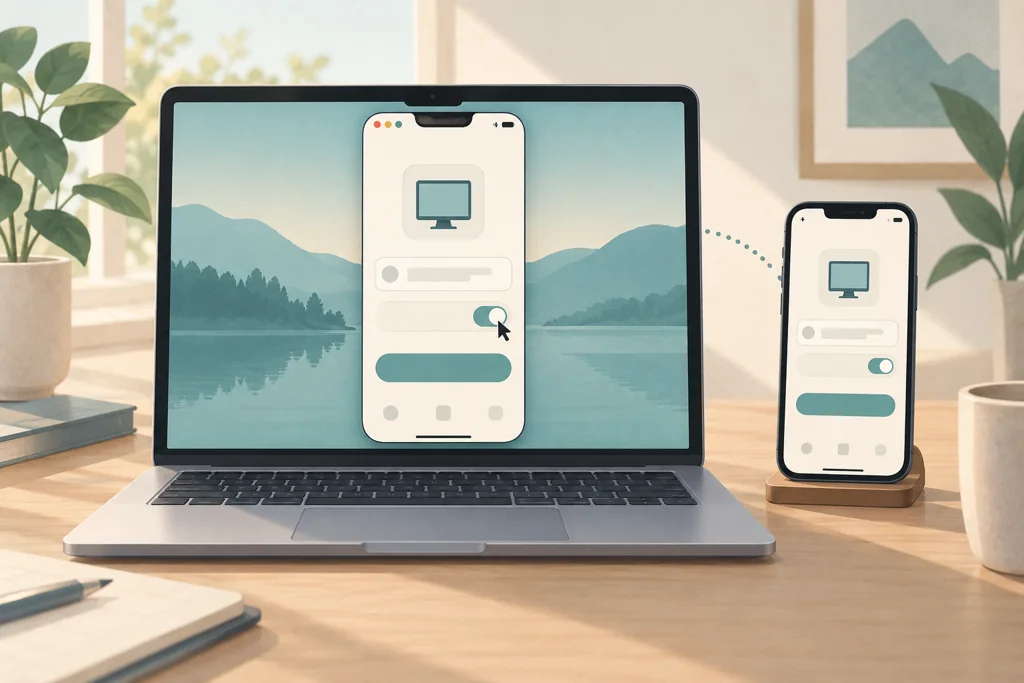
Illustration, not an account screenshot. iPhone Mirroring exposes the phone interface on the Mac; Computer Use operates that window.
What restored iPhone Mirroring on my setup?
I asked Codex to inspect the Mac’s continuity settings without changing anything. It confirmed that Handoff was active, verified that my iPhone was selected for mirroring, and looked at the region warning. That made one distinction clear: a Mac’s system region, its primary iCloud account, and its store account are three separate settings. Apple’s baseline requirements still apply. Both devices must use the same iCloud account with two-factor authentication, Bluetooth and Wi-Fi must stay on, and the locked iPhone must be near the Mac. Swapping store accounts doesn’t replace any of that.
I kept the primary iCloud identity on both devices and changed only the store sign-ins. This is where macOS sets an easy trap. On the Mac, sign out from the menu bar at the very top of the screen: Store > Sign Out. The exit I needed was not under the profile avatar inside the App Store window. I first clicked the avatar and then followed the Apple Account link, which opened a browser page instead of the store sign-out control.
After signing out through the top menu bar, I signed in with my existing China-region store account. On the iPhone, I went to Settings > [User Name] > Media & Purchases and switched the store login to my own China-region account, leaving my system iCloud sign-in alone. Codex helped me inspect menus and identify controls, but I did the account switching and authentication myself.
When I reopened iPhone Mirroring, the regional error was gone. The Mac asked for local login verification, I completed the Touch ID fingerprint scan myself, and the live iPhone screen appeared in a desktop window for Codex to operate.
This was only a store sign-in change. Changing the country of an existing primary Apple Account is a different matter entirely. Apple documents conditions involving account balances, subscriptions that prevent a region change, Family Sharing and payment methods, so don’t confuse store switching with migrating an Apple Account’s country. I didn’t test whether changing the Mac’s system region or using a VPN would work, and I didn’t try to reverse-engineer Apple’s region detection.
How did Codex use the phone?
OpenAI’s Computer Use lets Codex inspect and operate authorized desktop interfaces. iPhone Mirroring turns the mobile screen into an interactive desktop window. Standard AirPlay wouldn’t have worked, because it only streams video output. iPhone Mirroring accepts Mac keyboard and pointer input, so Codex can click buttons, select menus, and type text directly into the phone app.
Cursor, the AI code editor I use, gave me a concrete test case. I wanted tasks created in Cursor’s mobile app to run against my local Mac repository and environment. Earlier, Codex had looked at Cursor’s web dashboard, seen my Mac listed there, and jumped to the conclusion that the mobile app was ready too. I replied with a phone screenshot showing that the mobile machine selector still offered only Cloud.
A reply on Cursor’s official forum explained the missing piece. The iOS client requires Enable Remote Control to be turned on, while the web client doesn’t. The phone calls the group Remote Control; the web calls it My Machines. Codex found the disabled switch in Cursor’s browser settings. Once I authorized it, Codex turned the setting on and refreshed the page to confirm it had saved.
With the mirrored iPhone window open on the Mac, Codex used Computer Use to operate it. It clicked the new task prompt in the real iPhone’s Cursor app, opened the machine selector, chose my local Mac, entered a read-only test prompt, and sent it. These clicks were in the app on my physical phone, not a simulator. Letting Codex handle the browser settings and the mirrored phone closed the loop, and I didn’t have to relay screenshots or tap buttons myself.
How did we verify that the task ran on the Mac?
Seeing the computer name in the mobile menu was only a midway check. To confirm the task ran on the Mac and not in a cloud runner, we wrote a read-only verification prompt from the phone. It told the environment to return its working directory path, report the operating-system name, and read a local file containing a fresh random string generated on the Mac right before the test.
The task completed and returned the expected project path, Darwin, and the exact random string from the Mac file. We reviewed the result inside the mirrored iPhone window in read-only mode to confirm the phone showed the identical output. Reading a fresh file on the Mac was stronger evidence of local execution than a Connected label. To protect privacy, I’ve left out the specific hostnames, paths, session identifiers, and the random string, but the verification pattern is easy to reuse.
Local execution still relies on cloud infrastructure. As Cursor’s My Machines documentation explains, the high-level agent loop and reasoning run in Cursor’s cloud, while tools, file edits, and shell commands run on the designated local computer. Both the local machine and its background worker connection must stay active and online.
The main benefit was less manual friction. Instead of hunting through menus and bouncing between browser tabs and phone screens, I set the objective, supplied the screenshot that corrected an early assumption, and handled credentials and biometric scans. Codex examined interfaces, updated remote control settings, clicked mobile controls, and checked the execution data. I didn’t run a stopwatch comparison against doing everything by hand, so I can’t quote minutes or dollars saved. What I can say is that it felt like less mental effort.
For similar tasks, the pattern is simple: ask the agent to inspect the current state, confirm proposed changes before applying them, hand authentication back to the user, and verify the final behavior inside the target application. I’ve written up related experiments in my browser automation notes. Bringing iPhone Mirroring into that loop extends desktop automation to mobile interfaces that would otherwise need constant manual work.
Frequently Asked Questions
How do I fix iPhone Mirroring when it says it’s unavailable in my region in Europe (the EU)?
What worked in my test on October 4, 2026: keep the primary iCloud account signed in on both the Mac and the iPhone, switch only the store sign-ins (the Mac App Store and the iPhone’s Media & Purchases) to an existing China-region Apple Account, then reopen iPhone Mirroring and complete the Mac’s login or Touch ID verification yourself. Apple’s baseline requirements still apply: both devices signed in to the same iCloud account with two-factor authentication, Bluetooth and Wi-Fi turned on, and the iPhone locked and near the Mac. Apple still lists iPhone Mirroring as unavailable in the European Union, so treat this as a personal test result, not a guaranteed workaround.
When switching accounts, why sign out of the App Store through the Store menu in the Mac’s menu bar instead of changing the primary Apple Account?
Because only the store sign-in needs to change. On a Mac, the App Store’s sign-out lives in the menu bar at the very top of the screen (Store > Sign Out), not under the profile avatar inside the App Store window; following the avatar to the Apple Account link just opens a browser page. The primary Apple Account (your iCloud account) should stay as it is: iPhone Mirroring requires both devices to be signed in to the same iCloud account, and changing the primary account’s country or region is a far bigger step, tied to conditions such as account balances, subscriptions that block a region change, and Family Sharing. Switching store sign-ins is not the same as moving an Apple Account to another country, so don’t mix the two up.
Does switching the store account affect the primary iCloud account, system data, or cross-device sync?
It leaves the primary iCloud account untouched, and nothing has to be erased or reset. Both devices stay signed in to the original iCloud account; only the App Store and Media & Purchases sign-in moves to another account. Apple supports using a different Apple Account for Media & Purchases than for iCloud, so iCloud data and cross-device sync stay with the original primary account, which is also the shared account iPhone Mirroring relies on. What changes is the store side: later app downloads, purchases, subscriptions, and media such as Apple Music follow the newly signed-in store account. If you plan to switch back and forth, note Apple’s warning that a device previously associated with another Apple Account for purchases might have to wait up to 90 days before it can be associated with a different one.
Why can Cursor’s web dashboard see my Mac while the iPhone app can’t find it when I start a task?
Cursor’s iOS app has one extra requirement: Enable Remote Control must be turned on in Cursor’s web dashboard, while the web client doesn’t need it. The phone lists these machines under Remote Control; the web dashboard calls them My Machines. Once the setting is on and the page has been refreshed, the Mac appears in the machine selector when you start a new task on the phone. Choosing your Mac doesn’t mean the model runs locally: reasoning still happens in Cursor’s cloud, while commands and file operations run on the selected computer, so the Mac and its connection process must stay online.
If you found this helpful, consider buying me a coffee to support more content like this.
Buy me a coffee